How to Print an Address on an Envelope (Free, 4 Ways)
You don’t need special software to print an address on an envelope. Here are four free or already-installed ways to do it, and the few printer settings that decide whether the address lands where it should.
Updated 10 min readBy the Envelope10 team
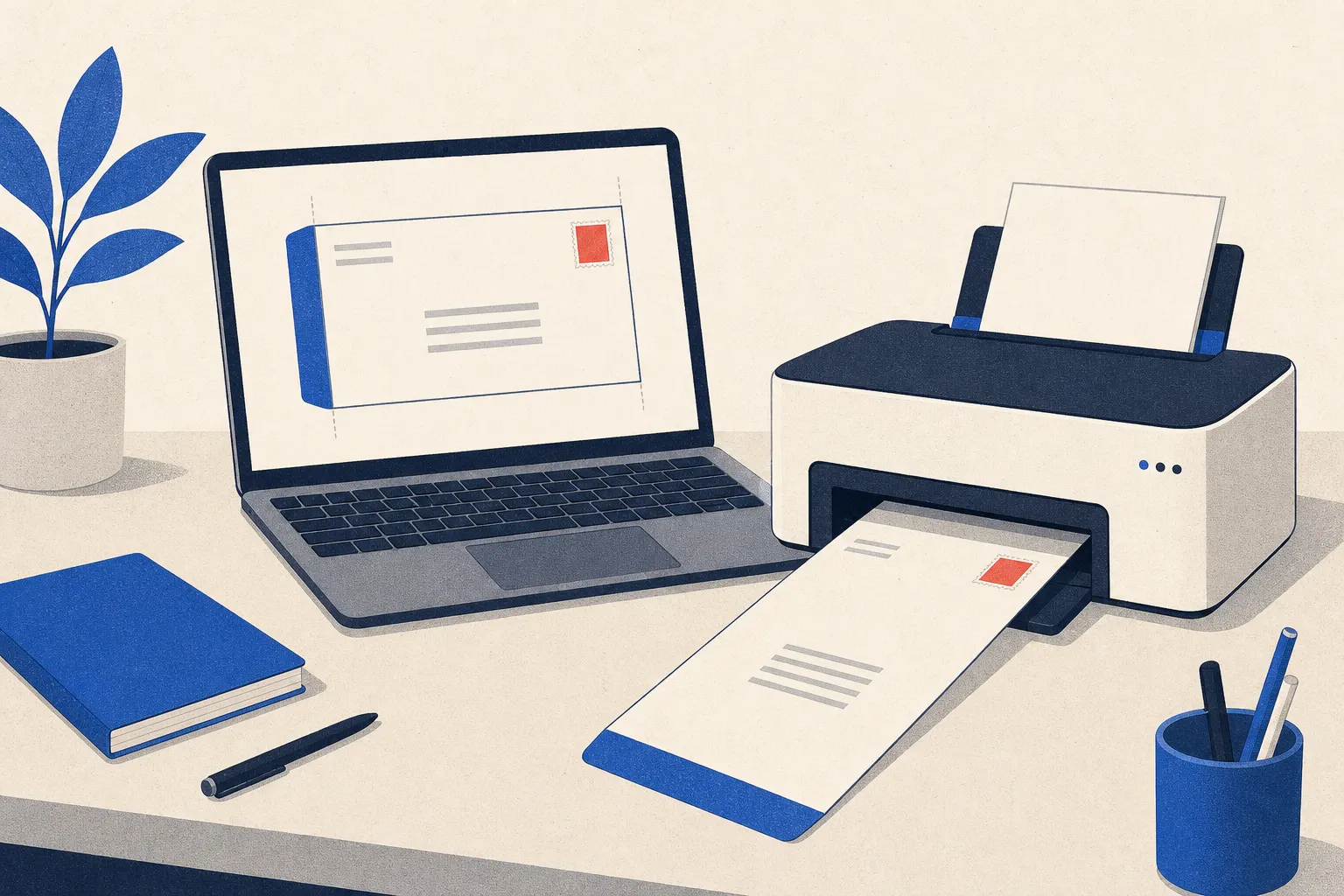
To print an address on an envelope for free, type the addresses into an online envelope tool such as Envelope10, open the PDF, and print it with the paper size set to your envelope (Envelope #10 for a standard business envelope) at 100% scale. If you’d rather use software you already have, Microsoft Word, Google Docs and Apple’s Pages and Contacts apps can all do it, with more setup.
Whichever route you pick, the result depends on a few printer settings. Most misprinted envelopes come down to the wrong paper size, a page scaled to fit, or an envelope fed the wrong way round. Below are four ways to print an address, a side-by-side comparison, the settings that matter and fixes for the usual misprints.
What you need
- Envelopes. Plain #10 envelopes (9½ × 4⅛ in) are the standard US business size, and printer drivers list them under names like Envelope #10 or Com10. Cards and invitations usually come in A7 or A2 envelopes; our envelope sizes chart shows the rest. HP advises avoiding envelopes with clasps, windows or shiny, coated surfaces (HP Support).
- A printer that takes envelopes. Most home printers feed them through the main tray, a rear tray or a manual slot. How many you can load varies: Canon’s TS6300 and Epson’s ET-2980 take up to 10 in the rear tray, while Brother’s DCP-L2508DW laser takes one at a time through its manual feed slot.
- Both addresses, complete. Name, street, apartment or suite, city, state and ZIP Code. Use the ZIP+4 if you have it; USPS asks for it whenever possible.
- A way to lay it out. Any of the four methods below.
Method 1: Use a free online envelope printer
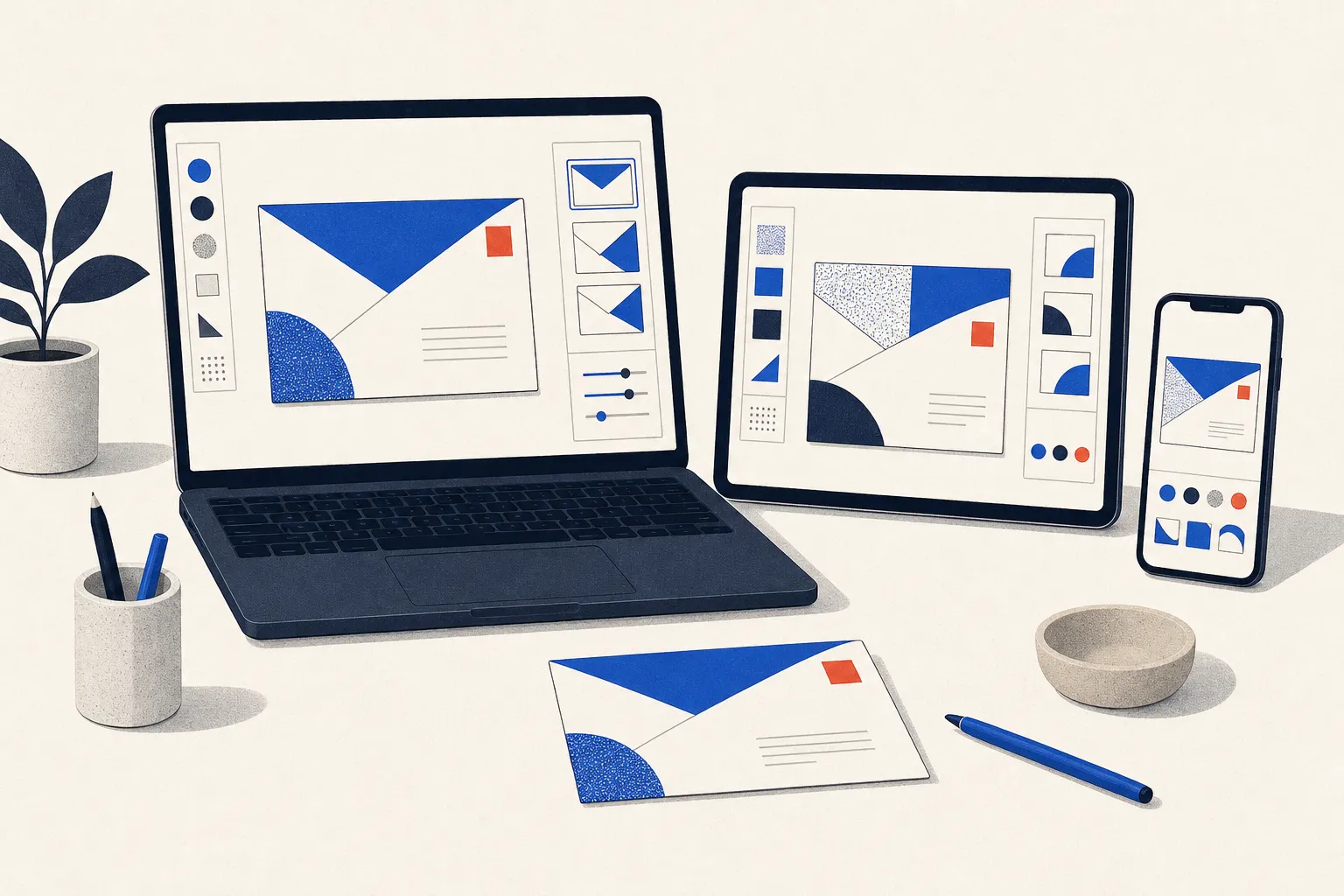
An online envelope printer skips page setup entirely. You type the addresses into a form and get a PDF that’s already the size of the envelope. The Envelope10 printer does this for five common sizes — #10, #9, #6¾, A7 and A2:
- Open the printer and pick the size in any modern browser — Windows, Mac, Chromebook, tablet or phone. The preview switches to that envelope’s exact proportions.
- Type the return address. Name, street, an optional apartment or suite line, city, state and ZIP (5 digits or ZIP+4).
- Type the delivery address. Same fields. The state list includes DC, Puerto Rico, Guam, the US Virgin Islands and the military codes AA, AE and AP.
- Check the preview. It’s drawn to scale. Turn on the USPS zones overlay to see the delivery band and the barcode clear zone as you type.
- Pick a style. Helvetica or Courier, plus an optional ALL CAPS mode, the format the Postal Service prefers.
- Open or download the PDF. Open it in a new tab and press Ctrl+P (⌘+P on a Mac), or download it to print later.
- Print at 100% scale with the paper size the printer names for your envelope — Envelope #10 for a #10, or a custom size for A7 and A2, whose names in print dialogs belong to ISO paper sizes.
Privacy, cost and limits
The PDF is generated on your device, so the addresses never reach a server, and there’s no account. If you tick “Remember my addresses and print history,” your last 12 envelopes are saved in your browser’s local storage for one-click refills; leave it off and nothing is kept. The tool is free and supported by donations.
It does one job. It prints one envelope at a time in five sizes, for US addresses, and it needs both a return and a delivery address. For other sizes or a mail-merge batch, use one of the methods below.
Method 2: Microsoft Word
If you have Word on a computer, its envelope tool lays out both addresses for you (Microsoft Support):
- Go to Mailings › Envelopes.
- Type the delivery and return addresses. Tick Omit if you don’t want a return address.
- Click Options. On the Envelope Options tab choose Size 10; on the Printing Options tab pick the feed method that matches your printer.
- Click Print, or Add to Document to keep it with the file.
Two caveats. Word isn’t free, though many people already have it, and Microsoft says envelopes can only be printed from the Word desktop app, not from Word on a phone or tablet (Microsoft Support). In return, Word handles batches through mail merge from an Excel list or Outlook contacts. Our guide to printing an envelope in Word covers the feed diagram, a saved return address and mail merge step by step.
Method 3: Google Docs
Google Docs has no built-in envelope feature. File › Page setup offers orientation, a preset list of paper sizes, margins and page color, with no envelope option, and page setup isn’t available in pageless documents at all (Google Docs Help). To get an envelope-sized page you need a Marketplace add-on such as Page Sizer, then you position the addresses by hand.
That makes Docs the most setup of the four for a single envelope, though it does run on a Chromebook. If you’re on a Chromebook anyway, an envelope PDF is quicker: print it from Chrome and choose More settings › Paper size › Envelope #10, if your printer offers it. Our guide to printing an envelope in Google Docs compares the add-on and PDF routes.
Method 4: Pages or Contacts on a Mac
Macs come with two free apps that print envelopes, and they suit different jobs.
Contacts: fastest for people already in your address book
- Fill in your My Card if you want a return address. Contacts takes it from there.
- Select one or more contacts, or a whole list. Only cards that have an address print.
- Choose File › Print.
- Set the Style menu to Envelopes. If you don’t see it, click the disclosure arrow next to Contacts.
- Choose a size under Layout. Pick from the North American sizes, or choose Define Custom for anything else.
- Use the Label tab to include your return address, choose which address to use (Work or Home, for example) and set the font.
- Choose an orientation and click Print.
Because you can select several cards at once, Contacts is the free way to print a small batch on a Mac (Apple Support).
Pages: best when you want to design the envelope
- Choose File › New, then click Stationery in the template chooser.
- Double-click an envelope template in the Envelopes section.
- Set the size. In the Document sidebar, open the Document tab and pick an envelope size under Printer & Paper Size. If yours isn’t listed, choose File › Page Setup, open Paper Size, pick Manage Custom Sizes and create a 9.5 × 4.125 in size.
- Replace the placeholder text with the recipient’s address and your return address.
- Choose File › Print, pick your printer and print.
Save the result as a template and it shows up under My Templates next time (Apple Support). If you move the text boxes around, keep the delivery address inside the USPS read area described below.
Which method should you use?
| Method | Cost | First-envelope setup | USPS zones shown | Batches | Works on |
|---|---|---|---|---|---|
| Envelope10 | Free | About a minute | Yes, as a preview overlay | No, one at a time | Any modern browser, including Chromebooks and phones |
| Microsoft Word | Paid (Microsoft 365 or Office) | A few minutes, plus a test for the feed setting | No; Word positions the blocks | Yes, mail merge | Windows and Mac desktop app |
| Google Docs | Free | Longest: add-on, page size, manual layout | No | Through Marketplace add-ons | Any browser, including Chromebooks |
| Mac Contacts / Pages | Free with macOS | A few minutes | No; app or template layout | Yes, in Contacts | Mac |
In short:
- One envelope in a common size, any computer or a Chromebook: an online printer.
- Dozens of envelopes from a spreadsheet: Word mail merge.
- A Mac with the addresses already in Contacts: Contacts.
- A designed envelope with your own fonts and layout: Pages.
LibreOffice Writer, Avery Design & Print and Canva can print envelopes too. We compare them in our roundup of the best free envelope printing software.
Print settings that matter
Whichever method you use, these settings in the print dialog decide where the ink lands:
- Paper size. Choose your envelope size. A #10 appears as Envelope #10, Com10, Com-10 or Envelope Com 10 depending on the driver, and as Size 10 in Word. If it’s missing, create a custom size of 9.5 × 4.125 in. For A7 and A2 envelopes always create a custom size (7.25 × 5.25 in and 5.75 × 4.375 in): the “A7” and “A2” in the list are ISO paper sizes, not envelopes. Our A7 and A2 guides explain.
- Scale. 100% or Actual size. “Fit to page” shrinks the layout and moves the address.
- Orientation. Landscape. The Envelope10 PDF is already a landscape page the exact size of the envelope you picked.
- Media type. Envelope, if your driver offers it. Brother’s driver, for example, lists an Envelopes media type.
- Paper source. Pick the tray or slot you loaded. Some lasers need extra steps: Brother’s DCP-L2508DW asks you to open the back cover and pull down two green envelope levers before you feed one through the manual slot (Brother Support).
Format the address correctly
Software places the address block, but what goes in it is up to you. The quick rules from the Postal Service:
- Line order: name, company (if any), street address with the apartment or suite at the end, then city, state and ZIP.
- Capitals, no punctuation. Both are preferred, not required (Pub 28). Envelope10’s ALL CAPS switch handles the first; the comma it puts after the city is acceptable, since USPS accepts addresses with punctuation.
- Readable type: at least 8 pt, preferably a sans-serif font (DMM 202), in dark ink on a light envelope. Envelope10 uses 12 pt for the delivery address and 10 pt for the return address.
- Placement: the delivery address at least ½ in from the left and right edges and between ⅝ in and 2¾ in above the bottom, with the 4¾ × ⅝ in strip in the lower right left blank for the barcode.
For examples covering ATTN lines, c/o, PO Boxes and military mail, see how to address an envelope. For the reasoning behind each measurement, see our USPS address placement rules.
Quick fixes for misprints
- Address too low, cut off or off-center. Usually the paper size or scale. Set Envelope #10 (or your envelope’s size) and 100%, and turn off any fit-to-page option.
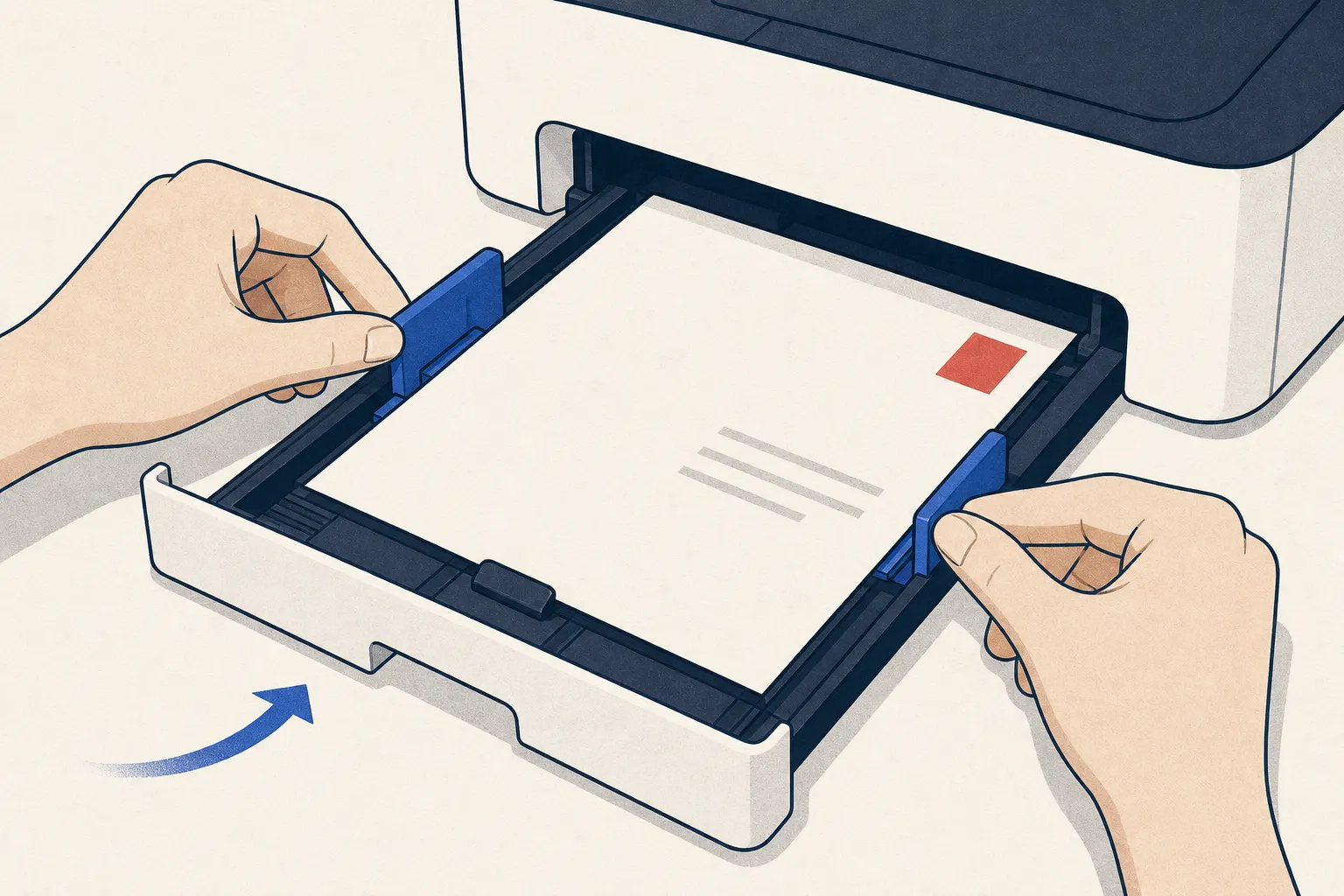
- Printed on the back, or upside down. The envelope went in the wrong way round. HP’s general rule is face down with the flap on the left for an inkjet front tray, and face up with the flap on the left for a rear tray or a LaserJet front tray, but models vary, so check the tray icon or your manual.
- Crooked text. Slide the paper guides snug against the envelope’s edges and load fewer envelopes at a time.
- Smudges. Let inkjet ink dry before you stack the envelopes, and avoid shiny or coated envelopes.
- Jams, wrinkles or double feeds. Flatten the stack, stay under your tray’s envelope limit and skip envelopes with clasps or windows.
- Flaps sealing shut on a laser printer. Use envelopes made for laser printers; HP advises against self-stick adhesives in LaserJets.
For orientation diagrams and brand-specific notes, see our guide to loading envelopes in HP, Canon, Epson and Brother printers. Once one envelope comes out right, keep the same settings, and every envelope you print from Envelope10 will land in the same place.
Frequently asked questions
How can I print an address on an envelope without Word?
Use a free online envelope printer that produces an envelope-sized PDF, such as Envelope10 for #10, #9, #6¾, A7 and A2 envelopes. On a Mac, the built-in Contacts and Pages apps can print envelopes too. Google Docs works only with an add-on, because it has no envelope page size.
Can I print an envelope from my phone?
You can fill in a browser-based envelope tool on a phone and print the PDF over AirPrint or Mopria, if your printer supports envelope sizes that way. Microsoft says envelopes can only be printed from the Word desktop app, not Word on mobile.
What font size should an address on an envelope be?
USPS requires at least 8-point type, with characters at least 0.080 inch tall, and prefers a sans-serif font. Around 12 pt for the delivery address and 10 pt for the return address is easy to read and fits a #10 envelope comfortably.
Should a printed envelope address be in all caps?
USPS prefers uppercase letters but accepts lowercase if the address is machine-readable. Capital letters without punctuation is the style used in USPS's own addressing examples.
Can I print envelopes on both inkjet and laser printers?
Yes. With an inkjet, let the ink dry before stacking the envelopes. With a laser, use envelopes made for laser printers; HP, for example, advises against self-stick adhesive envelopes in its LaserJets.
Is Envelope10 really free?
Yes. There is no account to create and nothing to install. The PDF is generated in your browser, so your addresses are not uploaded, and the site is supported by donations.